
JPG vs PNG: How to Choose the Right Image Format
A clear guide to choosing between JPG and PNG based on image content, transparency needs, file size, and visual fidelity.
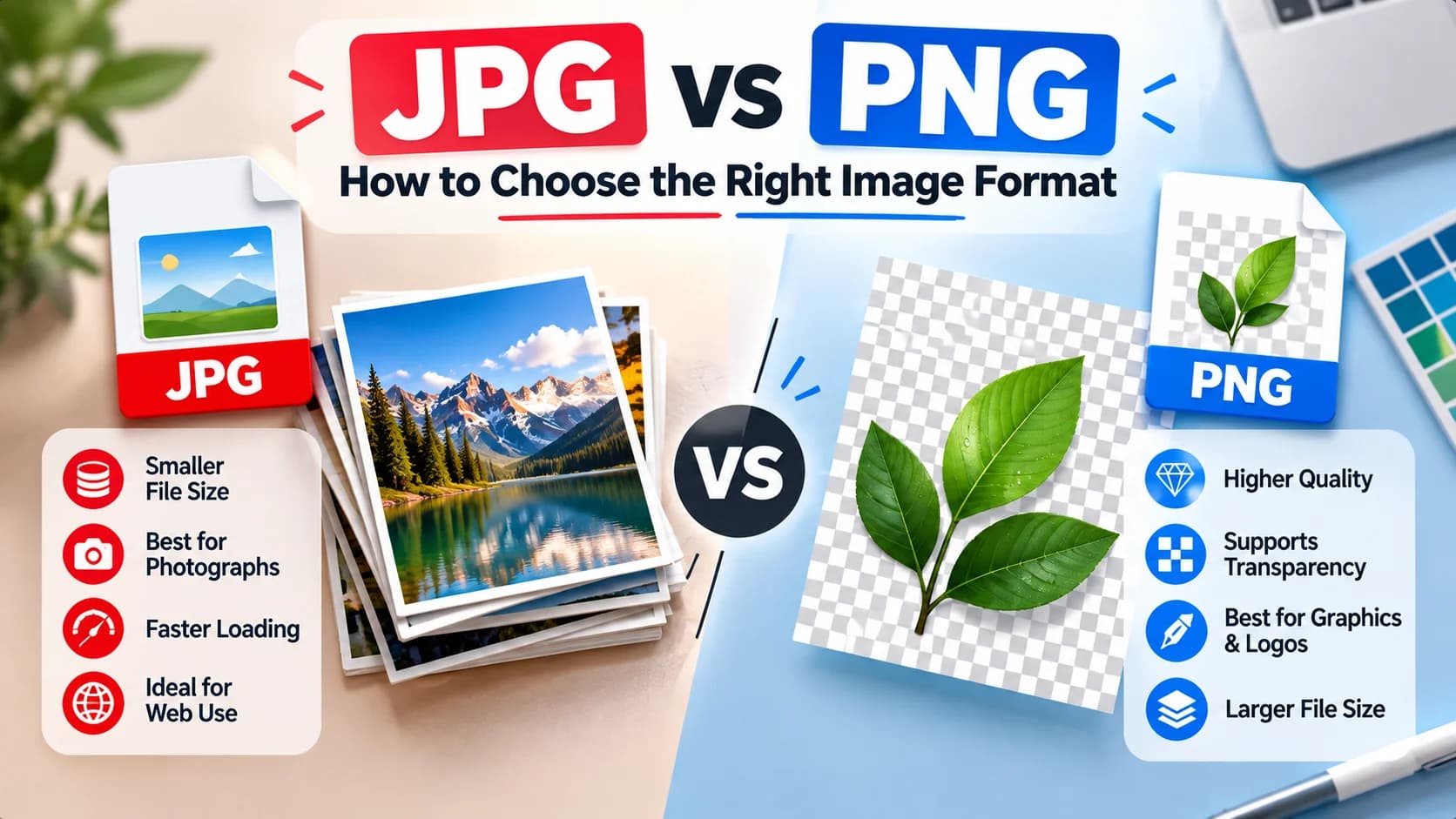
Few decisions in web design and digital publishing occur as frequently as choosing whether to save an asset as a JPG or a PNG. Whether you are exporting a client logo, publishing a blog illustration, sharing a software tutorial screenshot, or preparing product photography for an online store, picking between these two established formats directly influences both image sharpness and download weight.
Yet confusion remains widespread. Many content creators save every visual asset as PNG under the mistaken impression that PNG is always "higher quality." Others save crisp vector logos as JPG, only to wonder why fuzzy halos and smudges appear around clean geometric letters. Neither format is universally superior. Each was engineered to solve fundamentally different technical challenges.
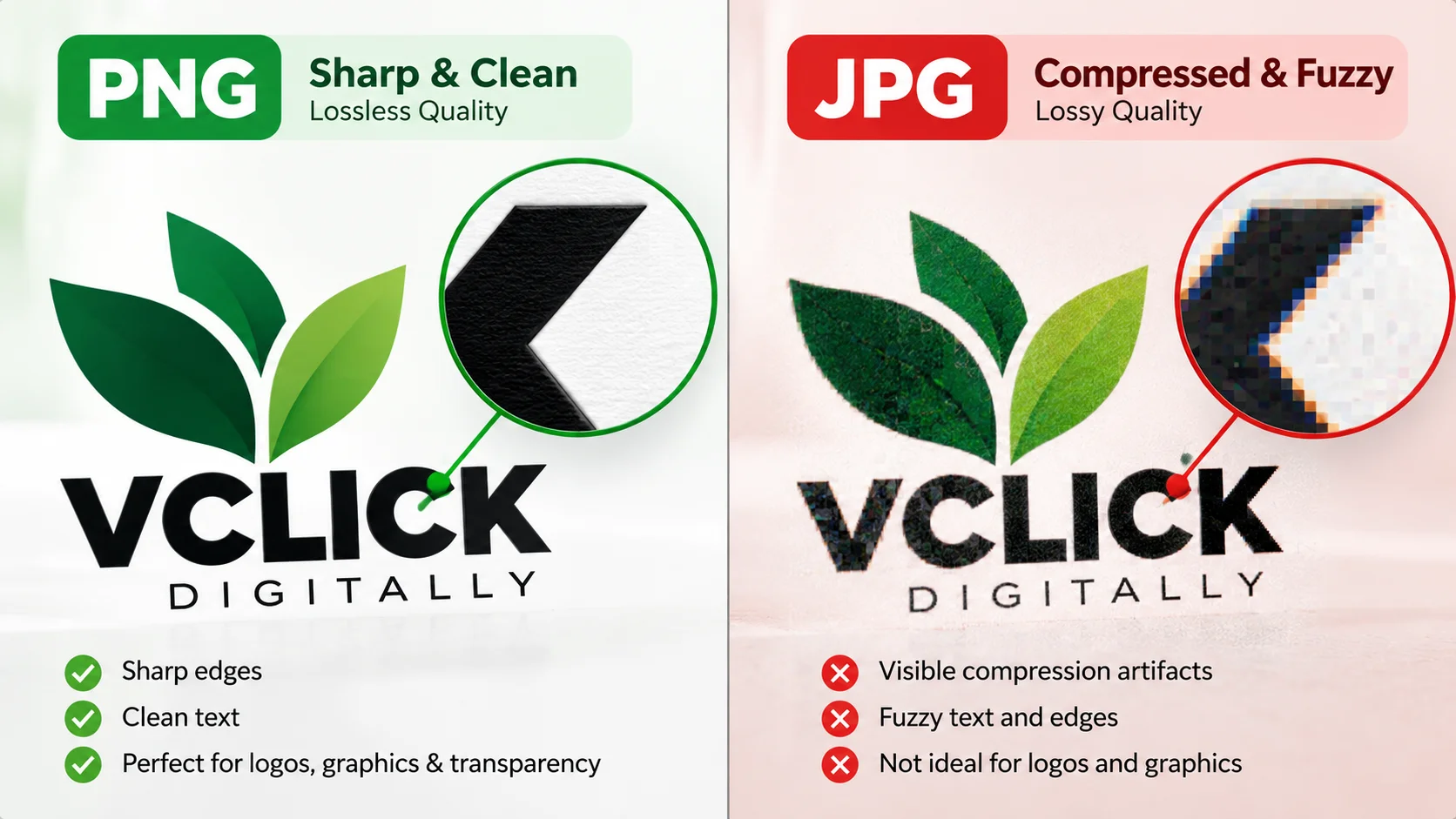
The Fundamental Difference: Lossy JPG vs Lossless PNG
To choose the right format, you must understand the underlying technical distinction between lossy and lossless data storage:
- JPG (Joint Photographic Experts Group): A lossy format. When you save an image as JPG, the compression algorithm permanently discards visual information that the human eye is less likely to notice. This allows photographs containing complex color blends to achieve remarkably small file weights.
- PNG (Portable Network Graphics): A lossless format. PNG uses DEFLATE compression (similar to ZIP archiving) to compress pixel data without discarding a single detail. When decompressed, the displayed image is a pixel-perfect replica of the source file.
How JPG Compression Works on Complex Photographic Data
Photographs are characterized by continuous variation. A photo of a sunset or a portrait contains millions of subtle, shifting color values with virtually no harsh, geometric lines. In this environment, JPG compression shines.
The JPG algorithm divides images into 8×8 pixel blocks and translates spatial color data into frequency values. Because human vision is far more sensitive to brightness differences than to fine color nuances, JPG reduces color information while preserving overall light and dark structure. This makes JPG the standard workhorse for photographic scenes, full-width travel galleries, and realistic lifestyle imagery.
Why PNG Excels at Crisp Edges, Text, and Graphic Transparency
PNG was introduced in the mid-1990s as an open-source replacement for the older patent-encumbered GIF format. PNG is engineered specifically for graphics with sharp, defined boundaries:
- True Alpha Channel Transparency: Unlike JPG (which has no transparency capability whatsoever), PNG supports 8-bit alpha channels. This enables 256 levels of opacity, allowing logos and cutouts to cast realistic soft drop shadows over dynamic website backgrounds.
- Zero Edge Artifacts: Because PNG is lossless, high-contrast boundaries between black text and white backgrounds stay razor-sharp.
- Flat Color Efficiency: Graphics featuring large areas of solid color (such as charts, diagrams, and UI wireframes) compress extremely well in PNG without visual noise.
When Saving as JPG Creates Ugly Edge Artifacts
Applying JPG compression to geometric graphics or typography triggers a documented flaw known as mosquito noise or ringing artifacts. Because the JPG algorithm approximates color curves across 8-pixel blocks, sharp vertical or horizontal boundaries confuse the mathematical function.
The result is a cluster of dark, dirty-looking pixels scattered around the perimeter of letters, icons, and logo borders. If you have ever seen a company logo on a website that looks slightly smudged or blurry around the edges, it was almost certainly saved as a JPG instead of a PNG.
Why Saving Photographs as PNG Causes Massive File Bloat
The opposite error is saving rich photographs as PNG. Because PNG does not discard data, it attempts to record every tiny color nuance in a photographic scene losslessly.
A photo that might weigh 180 KB as a clean, high-quality JPG can easily balloon to 2.5 MB or 4 MB when saved as a 24-bit PNG. Serving multi-megabyte PNG photos across an editorial blog or product catalog wastes bandwidth, drains mobile data plans, and degrades page loading speeds.
Practical Decision Table: Format Recommendations by Use Case
Use this practical reference table whenever you need to decide which format best matches your asset:
| Use Case | Usually Suitable | Why |
|---|---|---|
| Photography & Complex Scenes | JPG | Smooth color variations compress efficiently without noticeable banding or massive file bloat. |
| Logos & Brand Identity Assets | PNG | Requires alpha transparency and razor-sharp geometric edges without compression halos. |
| Software UI Screenshots | PNG | UI typography, interface buttons, and solid-color panels stay crisp and readable. |
| Full-Width Hero Photographs | JPG | Keeps multi-megapixel backgrounds within practical download limits (100–250 KB). |
| Icons & Technical Line Diagrams | PNG | Crisp pixel-aligned boundaries with zero lossy compression blur or color bleeding. |
| E-Commerce Product Photos (Solid BG) | JPG | Photographs against a solid white background achieve lower byte weights in JPG. |
| E-Commerce Product Cutouts (Transparent) | PNG | Alpha transparency allows the product to float seamlessly over colored or dynamic site themes. |
Understanding Color Palettes: PNG-8 vs PNG-24 Color Depth
When selecting PNG for graphics, developers often encounter two distinct variations: PNG-8 and PNG-24. Understanding the technical difference between these sub-formats prevents unnecessary file bloat:
- PNG-8 (Indexed Color): Stores an indexed palette of up to 256 colors. For simple UI icons, flat navigation badges, and single-color logos, PNG-8 produces extraordinarily tiny files (often 5 KB to 15 KB) while retaining razor-sharp lines. However, PNG-8 supports only binary 1-bit transparency (a pixel is either 100% visible or 100% transparent), meaning it cannot render soft feathered drop shadows.
- PNG-24 (Truecolor with Alpha): Supports over 16 million colors plus an 8-bit alpha transparency channel (allowing 256 degrees of translucent blending). This makes PNG-24 the gold standard for intricate illustrations, glassmorphism UI overlays, and complex product cutouts that must blend over varied backgrounds.
Converting Between JPG and PNG Without Software Installs
If you have an image that was saved in the wrong format, converting it is straightforward using browser-based utilities:
- Use our PNG to JPG Converter when you have photos or textures mistakenly stored as heavy PNGs and want to shed unnecessary megabytes.
- Use our JPG to PNG Converter when you need to bring an image into a lossless container for graphic design or compatibility purposes.
- For universal adjustments, use our Image Format Converter or tune file sizes with the Image Compressor in the Image Tools hub.
All VClick Tools operate entirely inside your client browser window. Your private images are never uploaded to a remote server or stored in a cloud database.
Summary Rules of Thumb for Web Designers and Publishers
Keep these three practical rules in mind whenever you export graphics for the web:
- Does it have real-world photography? Save as JPG (or modern WebP).
- Does it have text, sharp geometric shapes, or require transparency? Save as PNG (or lossless WebP).
- Neither format is universally superior. Match the format to the visual characteristics of the content to achieve both visual sharpness and fast page loading.
Convert JPG and JPEG images to PNG directly in your browser. Single or bulk conversion with zero server uploads.
Convert heavy PNG graphics to compressed JPG photos locally with custom quality and background matting.
Convert legacy JPG/JPEG images to next-gen WebP format locally with adjustable quality and bulk ZIP export.
Convert heavy PNG graphics and logos to lightweight WebP files while preserving full alpha transparency.
Frequently Asked Questions
Common editorial inquiries and technical answers.
VClick Tools Editorial Team
Editorial & Content Optimization TeamEditorial and research specialists creating actionable, privacy-first guides, search optimization workflows, and documentation for VClick Tools.